English
 Español
 Français
 Deutsch
 العربية
 Português
 Italiano
 Polski
If you bought a laptop or a prebuilt PC in the last few years, chances are it shipped with Windows 11 Startseite. That’s fine for most people — until the day you go looking for BitLocker, Remote Desktop, or Hyper-V and realise none of them are there. Those features live in Windows 11 Pro, and Startseite simply doesn’t include them.
The good news is you don’t need to reinstall anything or wipe your machine. Windows can upgrade Startseite to Pro in place, keeping every file, app, and setting exactly where it is. The only real question is what you pay to unlock it — Microsoft’s in-app upgrade runs about $99, while a genuine Pro key does the identical job for a fraction of that. This guide walks through both the how and the how-much.
Short answer: To upgrade Windows 11 Startseite to Pro, open Settings → System → Activation → Change product key and enter a valid Pro key. Windows upgrades in place in a couple of minutes, keeps all your files, and unlocks Pro features. A genuine Windows 11 Pro retail key costs $8.99 — the same result as Microsoft’s $99 upgrade, for far less.
⭐ Key Takeaways
- You can upgrade Startseite to Pro without reinstalling — files and apps stay put.
- The upgrade happens under Settings → System → Activation → Change product key.
- Pro adds BitLocker, Remote Desktop host, Hyper-V, Group Policy, Windows Sandbox, and domain join.
- Microsoft charges roughly $99 in-app; a genuine Pro retail key does the same for $8.99.
- The process works the same on Windows 10 Startseite → Pro as it does on Windows 11.
On this page
What Pro adds over Startseite
Startseite and Pro share the same core Windows 11 experience — same interface, same apps, same updates. The difference is a set of security, virtualisation, and management tools aimed at power users and businesses. If you only browse and game, Startseite may be all you ever need. But the moment you want to encrypt a drive or remote into your desktop, you hit a wall.
| Feature | Startseite | Pro |
|---|---|---|
| BitLocker drive encryption | No | Yes |
| Remote Desktop — host (connect to this PC) | No | Yes |
| Hyper-V virtual machines | No | Yes |
| Group Policy Editor | No | Yes |
| Windows Sandbox | No | Yes |
| Domain join / Azure AD | No | Yes |
| Maximum RAM supported | 128 GB | 2 TB |
Note the Remote Desktop line carefully: Startseite can connect out to another machine, but it cannot act as the host you connect into. If you want to reach your home PC from the office, you need Pro on the machine you’re reaching. The same goes for BitLocker — Startseite offers a limited “device encryption” on some hardware, but the full BitLocker control panel is Pro only.
How to upgrade in place
This is genuinely simple. There’s no download, no bootable USB, and no reinstall — you’re flipping a switch that’s already built into your copy of Windows.
- 1. Back up first (good habit). The upgrade is safe and keeps your data, but a quick backup of anything irreplaceable never hurts.
- 2. Open Settings. Press Windows + I, then go to System → Activation.
- 3. Change the product key. Under “Upgrade your edition of Windows,” click Change product key, then Change.
- 4. Enter your Pro key. Type or paste the 25-character key. Windows validates it and confirms it’s a Pro key.
- 5. Let it upgrade. Click Start. Windows switches to Pro and reboots once. This usually takes two to five minutes.
- 6. Confirm activation. Back in Settings → System → Activation, you should now see “Windows 11 Pro” with an active status.
If the “Change product key” option is greyed out or the key won’t take, make sure you’re signed in as an administrator and connected to the internet, then try again. On some builds you may need to briefly disconnect a work or school account first.
Do you lose your files?
No. An in-place edition upgrade from Startseite to Pro is not a clean install. Microsoft designed it specifically so your files, installed programs, desktop layout, browser profiles, and settings all survive untouched. You’re not moving to a new copy of Windows — you’re unlocking features in the copy you already have.
The only thing that changes is the edition label and the feature set. Your OneDrive stays synced, your games stay installed, your printer stays configured. That said, encrypting a drive with BitLocker after the upgrade is a separate step you choose to run — the upgrade itself changes nothing about your existing data.
Startseite → Pro key vs the $99 Microsoft upgrade
When you click “Change product key” without a key in hand, Windows can send you to the Store to buy the Pro upgrade directly. That in-app route costs roughly $99. It works, it’s official, and it’s the price most people quietly pay because they don’t realise there’s an alternative.
The alternative is buying a genuine Pro retail key from a licensed reseller and entering that same key in the same box. The upgrade mechanism is identical — Windows doesn’t know or care whether the key came from the Microsoft Store or a reseller, as long as it’s a valid Pro key. The difference is purely what you paid.
| Microsoft in-app upgrade | Genuine Pro retail key | |
|---|---|---|
| Typical price | ~$99 | $8.99 |
| Reinstall required | No | No |
| Keeps your files | Yes | Yes |
| Result | Windows 11 Pro | Windows 11 Pro |
| Activation method | Change product key | Change product key |
To be clear and honest: a “retail” key ties to your Microsoft account and can move to a new PC later, whereas an OEM key is locked to one machine. For an in-place upgrade you want a retail key, which is what makes the switch clean and portable.
A note on legitimacy: Cheap doesn’t have to mean sketchy. The key you buy should be a genuine, unused retail license that activates through Microsoft’s own servers. Avoid free “activators” and cracked KMS tools — they aren’t licences, they break with updates, and they’re a security risk. A real key costs a few dollars and simply works.
Which key to buy
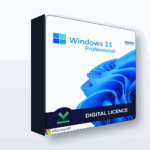
For a single computer, a Windows 11/10 Pro retail key for 1 PC is all you need — it upgrades one machine and stays with your Microsoft account. If you’re upgrading several machines at home or in a small office, the 5-PC bundle brings the per-machine cost down further. Both are the same retail key type; you’re just choosing how many you need.
📦 Genuine Windows 11 Pro Keys
Frequently Asked Questions
Can I really upgrade Windows 11 Startseite to Pro without reinstalling?
Yes. Go to Settings → System → Activation → Change product key and enter a valid Pro key. Windows upgrades the edition in place, keeps all your files and apps, and reboots once. There’s no clean install involved.
Will I lose my files or programs during the upgrade?
No. An in-place edition upgrade preserves your files, installed applications, and settings. Only the Windows edition and its available features change — everything else stays exactly as it was.
Is a cheap Pro key the same as Microsoft’s $99 upgrade?
The end result is identical — both give you activated Windows 11 Pro through the same “Change product key” process. The difference is price. A genuine retail Pro key does the same job for a few dollars instead of about $99.
What does Windows 11 Pro give me that Startseite doesn’t?
Pro adds BitLocker drive encryption, Remote Desktop host, Hyper-V virtual machines, the Group Policy Editor, Windows Sandbox, domain join, and support for much more RAM. Startseite lacks all of these.
Does the same method work for Windows 10 Startseite to Pro?
Yes. Windows 10 upgrades Startseite to Pro the same way — enter a Pro key under Change product key and it upgrades in place. The Pro retail keys sold for Windows 11 also activate Windows 10 Pro.
What’s the difference between a retail key and an OEM key?
A retail key ties to your Microsoft account and can be moved to a new PC later. An OEM key is locked permanently to the first machine it activates. For an in-place Startseite-to-Pro upgrade you want a retail key.
Final thoughts
Upgrading from Startseite to Pro is one of the rare Windows tasks that’s genuinely painless: no reinstall, no lost files, just a product key entered into a settings page and a single reboot. If you need BitLocker, Remote Desktop, Hyper-V, or Group Policy, Pro is worth it — and there’s no reason to pay $99 when a genuine retail key unlocks the exact same edition for a few dollars. Buy a legitimate key, enter it, and you’re done in minutes.